

monday.com Metrics
In this guide:
Introduction
In this guide, we’ll go over how to create the monday.com Metrics for BlinkMetrics.
Make sure that you have a monday.com Connection created before you dive into this guide.
Creating monday.com Metrics
Before we can set up a Scorecard in BlinkMetrics, we’ll need to create all of the Metrics that you want to track from the monday.com Connection source.
1. Go to the Metrics Page
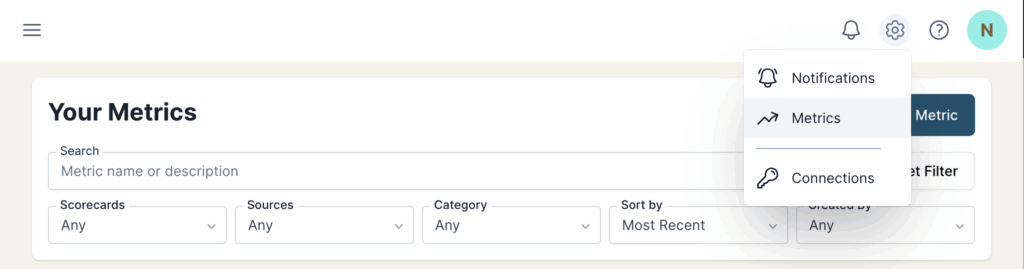
To create a monday.com metric, click on the Settings cog icon in the header > select the Metrics menu item. This will open the Metrics page. Next, click the Add Metric button.
2. Select Source Metric
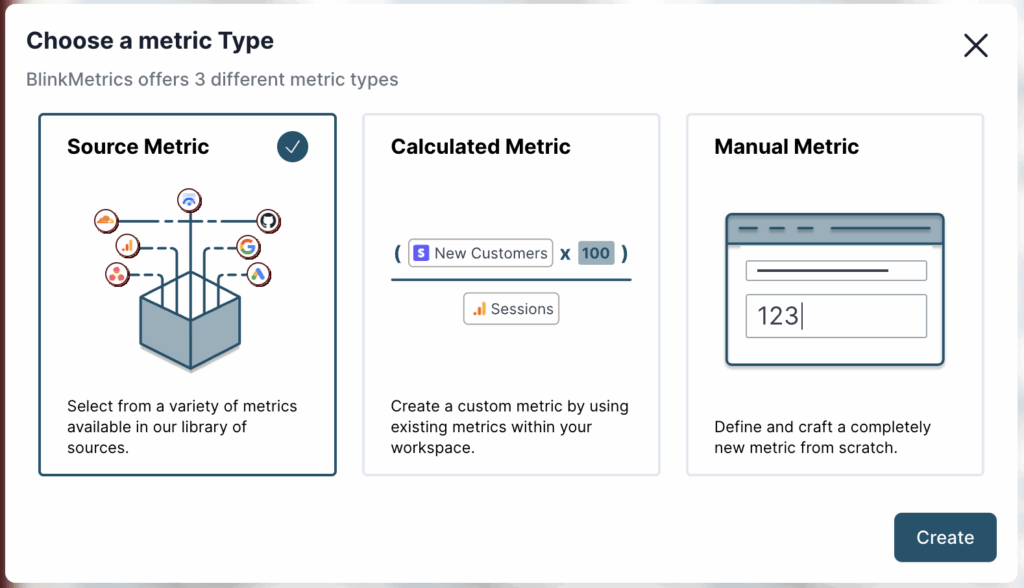
Next, you’ll need to select Source Metric from the Choose a Metric Type popup. Click Create to get started.
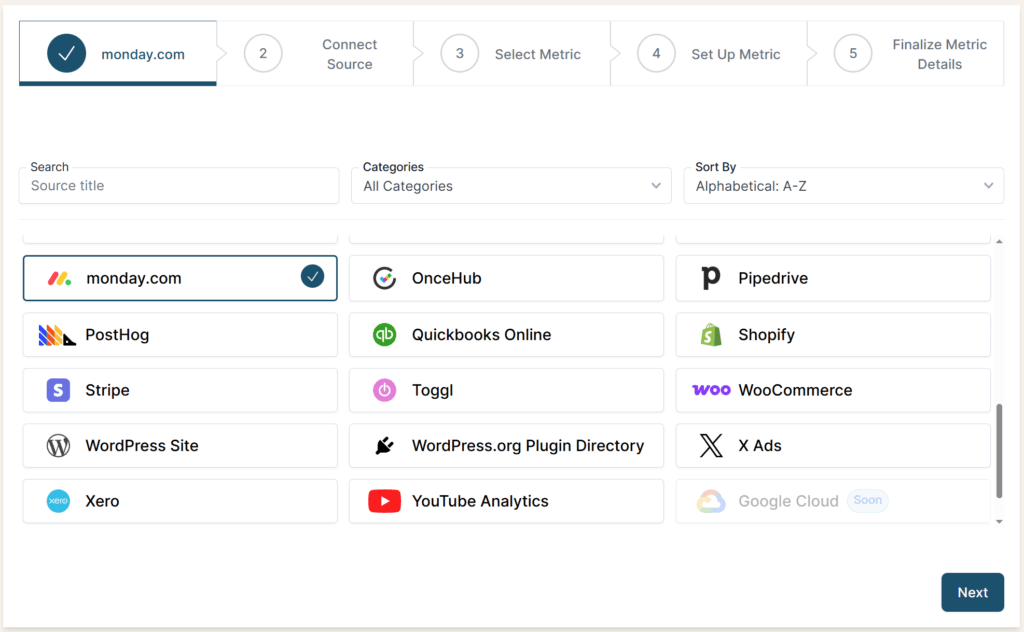
Select monday.com from the list of Sources.
3. Connect Source
Choose the monday.com connection you previously set up.
Make sure that you have a monday.com Connection created before creating metrics.
4. Select Metric
From the list of available monday.com metrics, pick the one you’d like to track in your BlinkMetrics Scorecards.
5. Set Up Metric
In this step, select the specific board or workspace in monday.com from which the metric should pull data. There may be additional fields depending on the metric that you’re setting up to make sure the data is targeted correctly.
6. Finalize Metric Details
Here, you’ll customize the details of your metric:
- Give it a name
- Optionally add a description or set a goal
- Choose a format (like number, percentage, or currency)
- Set privacy preferences
- You can also assign it to a Scorecard—but no worries if you don’t have one yet. You can always add it later.
Click “Finish” to save and activate your new metric.
Add to a Scorecard
Once your metrics are created, organize them using Scorecards. This lets you view multiple metrics from different sources all in one place.
And that’s it! You’re now tracking monday.com data in BlinkMetrics like a pro.
Note on Columns
When creating your metrics that use the monday.com Columns, the dropdowns should include all supported column types. However, if you find one that’s not covered, just let us know.