
TL;DR: Yes, Asana exports to CSV. From any project, click the dropdown arrow next to your project title and select “Export or sync” → “Export project tasks as CSV/XLSX.” Choose CSV and the file downloads immediately.
The process takes two clicks. What comes through in that file, and what doesn’t, is worth knowing before you open it.
Step-by-step: Export an Asana project to CSV
Step 1: Open your Asana project.
You can be in List, Board, Timeline, or Calendar view. The export option is available from any of them.
Step 2: Click the dropdown arrow next to your project title.
Look for the small triangle icon to the right of the project name at the top of the page.
Step 3: Select “Export or sync” → “Export project tasks as CSV/XLSX.”
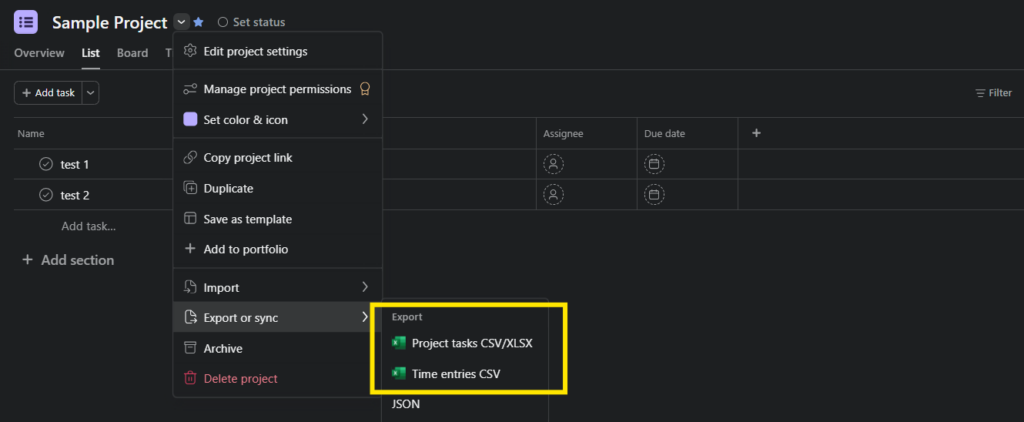
Click “Export or sync” near the bottom of the dropdown menu, then select “Export project tasks as CSV/XLSX.”
Step 4: Choose CSV and download.
A dialog will appear asking whether you want CSV or XLSX. Select CSV. The file downloads automatically. No conversion step needed.
Tip: Need Excel format instead? See how to export Asana to Excel for the XLSX option and a comparison of both formats. For more export options, see our complete Asana export guide.
What’s included in Asana CSV exports
| Included | Not included |
|---|---|
| Task names | Comments |
| Assignees | Attachments |
| Due dates | Task descriptions |
| Completion status | Activity history |
| Section names | Timeline dependencies |
| All custom fields | Subtasks (listed separately if configured) |
| Tags |
One thing that catches people off guard: Asana exports every custom field in your project, with no option to select which ones to include. A project with 25 custom fields produces 25 extra columns, most empty for the tasks you actually care about.
Common CSV export issues and fixes
Too many custom fields?
Quick fix: Delete the unwanted columns in Excel or Google Sheets after export.
Cleaner option: BlinkMetrics bypasses the manual exports altogether and pulls your data into custom reporting dashboards that are always ready to use.
Special characters appearing wrong?
If you open your CSV in Excel and see garbled text (question marks or odd symbols in place of accented characters), it’s a UTF-8 encoding mismatch.
Fix: Open the file in Google Sheets instead. It handles UTF-8 encoding automatically, and no configuration is needed. In Excel, use Data → “From Text/CSV” and select UTF-8 as the file encoding when prompted.
Frustrated with Asana’s CSV limitations? BlinkMetrics takes your reporting out of spreadsheets for good. See how.
Related guides:
- How to export from Asana — the complete guide
- Export Asana to Excel — XLSX export and Excel-specific tips
- Export Asana to Google Sheets — Native options. workarounds and alternatives
- Export Asana to PDF — Print and dashboard approaches
- Asana export comments — Getting discussion data out
- Asana JSON export — API-based structured data export
Frequently asked questions
Yes. From any project, click the dropdown arrow next to the project title, select “Export or sync” → “Export project tasks as CSV/XLSX,” then choose CSV. The file downloads immediately. No conversion needed.
Asana CSV exports include task names, assignees, due dates, completion status, section names, tags, and all custom fields in the project. Comments, attachments, and task descriptions are not included.
Asana exports every custom field in the project automatically, with no option to select specific fields. To reduce columns, delete unwanted ones in Excel or Google Sheets after export.
Yes, partially. Switch to List view, apply your filters using the Filter button (by assignee, due date, status, or custom fields), then export using the same dropdown method. The CSV will include only the tasks visible in the filtered view.