

TL;DR: Asana exports to JSON from the project dropdown menu (same place as CSV and XLSX). The native export gives you a structured snapshot of one project’s tasks, including task descriptions and nested subtasks. For comments, cross-project data, or scheduled exports, you’ll need the Asana API or a third-party tool.
What the native JSON export includes
From any Asana project, click the dropdown arrow next to your project name, select Export or Sync, then choose JSON. The file downloads immediately. For step-by-step screenshots, see the complete Asana export guide.
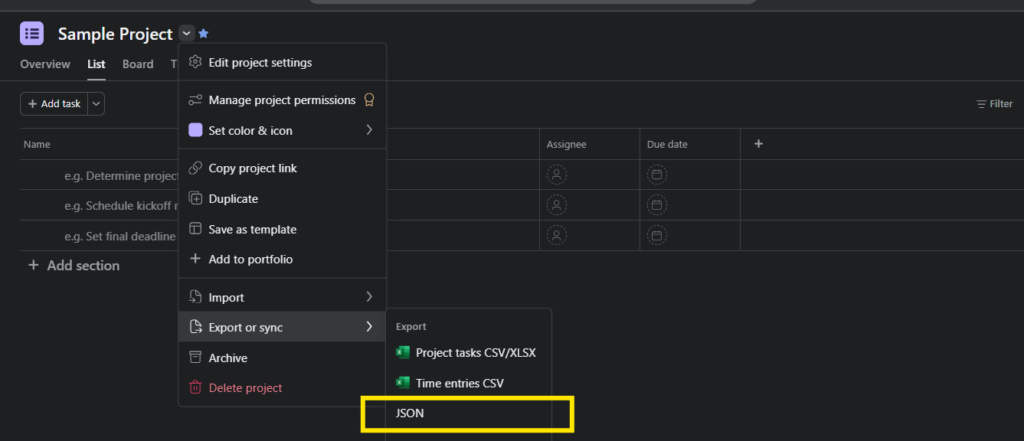
JSON gives you two things CSV doesn’t:
- Task descriptions — The full text of the description field, which is excluded from CSV exports
- Nested subtasks — Subtasks appear as objects within their parent task, rather than as flat separate rows
What’s still missing: comments, attachments, and activity history don’t appear in any native export format. Both CSV and JSON share this gap.
Enterprise admins can also request an organization-wide export through the Admin Console. This produces JSON but is a bulk data dump rather than a structured project export.
Using the Asana API for JSON export
The native UI export covers one project at a time with no scheduling. For comments, cross-project data, or automated pipelines, you need the API.
Authentication: Generate a Personal Access Token (PAT) in your Asana profile settings under Apps → Developer Apps → New access token. Include it as a Bearer token in every request.
Key endpoints:
| What you need | Endpoint |
|---|---|
| All tasks in a project | GET /projects/{project_gid}/tasks |
| Task details including description | GET /tasks/{task_gid}?opt_fields=name,notes,due_on,assignee |
| Task comments | GET /tasks/{task_gid}/stories |
Pagination: Asana returns up to 100 records per call. For projects with more tasks, follow the next_page.offset value in the response to retrieve the next batch.
A basic request looks like this:
curl "https://app.asana.com/api/1.0/projects/PROJECT_GID/tasks" \
  -H "Authorization: Bearer YOUR_PAT" \
  -G --data-urlencode "opt_fields=name,due_on,completed,assignee.name" \
  --data-urlencode "limit=100"
Rate limits: 1,500 requests per minute on Business and Enterprise plans; 150 requests per minute on Free and Premium.
The API approach makes sense when you have development resources and need comments, historical data, or a recurring automated sync.
Third-party tools for Asana data export
If your team doesn’t write code, a few tools handle the API work automatically:
| Tool | Best for |
|---|---|
| Zapier / Make | Triggered data transfers when tasks change status |
| BlinkMetrics | Structured data for dashboards, daily snapshots, no code required |
| Rewind / Backupify | Organization-wide data backup |
BlinkMetrics pulls Asana data via the API on a daily schedule and stores historical snapshots, so you can see how project metrics change over time rather than working from a single point-in-time export.
For quick one-project snapshots, the native JSON export works fine. The API covers comments, cross-project data, and automation. For structured Asana data without API development, a tool like BlinkMetrics handles the sync automatically.
Related guides:
- How to export from Asana — the complete guide
- Asana export to CSV — CSV format details and troubleshooting
- Export Asana to Google Sheets — Native options. workarounds and alternatives
- Export Asana to PDF — Print and dashboard approaches
- Asana export comments — Getting discussion data out
- Export Asana to Excel — XLSX export and Excel-specific tips
Frequently asked questions
Yes. From any project, click the dropdown arrow next to the project name, select Export/Print, then choose JSON. The file downloads immediately and covers all tasks in that project. Comments, attachments, and activity history are not included.
JSON includes task descriptions and nested subtasks as objects within their parent tasks. CSV excludes task descriptions and lists subtasks as separate flat rows. Both formats omit comments, attachments, and activity history.
Comments don’t appear in any native Asana export. To retrieve them programmatically, use the Asana API endpoint GET /tasks/{task_gid}/stories, which returns all comments and system activity for a task. Third-party tools like BlinkMetrics can also sync comments automatically without custom code. For more details, see our guide to exporting Asana comments.
Not through the native UI. Enterprise admins can request an organization-wide JSON export from the Admin Console, but it’s a bulk dump rather than a structured project-level export. The Asana API is the most practical way to extract JSON data across multiple projects programmatically.