
Can you export from Asana to Excel?
Short answer: Yes, Asana lets you export project data directly to Excel.
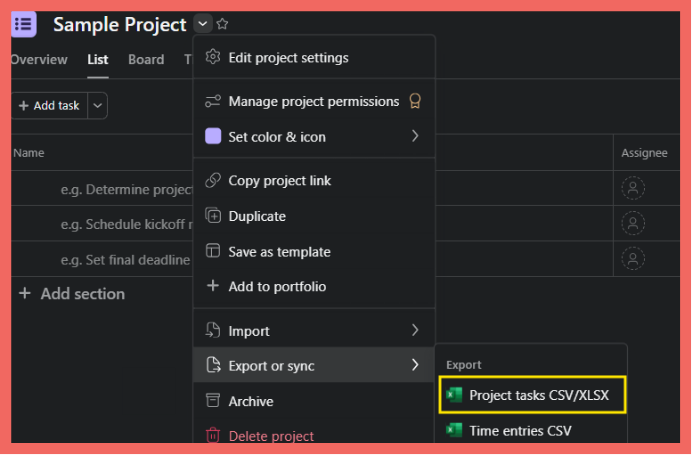
From your project dropdown menu (the small icon to the right of your project title), select “Export or sync” → “Export project tasks CSV/XLSX.” Choose the XLSX option and you’ll get a native Excel file. The export includes all custom fields (whether you want them or not) and doesn’t support timeline or Gantt views.
This guide covers the step-by-step export process, what data you’ll get (and won’t get), workarounds for common frustrations, and how to go beyond raw exports to visual dashboards your stakeholders will actually use.
But first: What will you actually do with that spreadsheet?
Before we walk through the export steps, here’s a question worth asking: what happens after you get that Excel file?
If you’re exporting Asana data, you’re probably one of these people:
- The bridge: Your leadership won’t log into Asana, so you pull data for them
- The analyst: You need deeper analysis than Asana’s native views allow
- The presenter: You’re building a case or status update for stakeholders
Here’s the problem: a spreadsheet full of task rows isn’t what any of these audiences actually want. They want answers to questions like:
- Are we on track?
- Where are we stuck?
- What changed since last time?
An Excel export gives you raw data. Turning that into something your executive can understand in 30 seconds? That’s still on you. And that work repeats every week, every month, every status meeting.
We’ll show you exactly how to export Asana to Excel below. But we’ll also show you how to skip the manual formatting cycle entirely and go straight to visual, presentation-ready dashboards that auto-update.
Can you export Asana to Excel?
Yes, Asana now supports direct Excel export. From any project, you can export to either CSV or XLSX format natively.
The process is straightforward. To export from Asana to Excel:
- Open your project in Asana
- Click the project dropdown (the small icon to the right of the project title)
- Select “Export or sync” → “Project tasks CSV/XLSX”
- Choose XLSX for a native Excel file
No conversion step is required. The XLSX downloads directly to your computer, ready to open in Excel.
3 ways to export Asana to Excel (step-by-step)

Method 1: Export a project to Excel (XLSX)
This is the most common export method. It exports all tasks from a single project directly to an Excel file.
Step 1: Open your Asana project
Navigate to the project you want to export. You can be in List, Board, Timeline, or Calendar view; the export works from any of them.
Step 2: Click the project dropdown menu
Look for the dropdown arrow icon to the right of your project title at the top of the page.
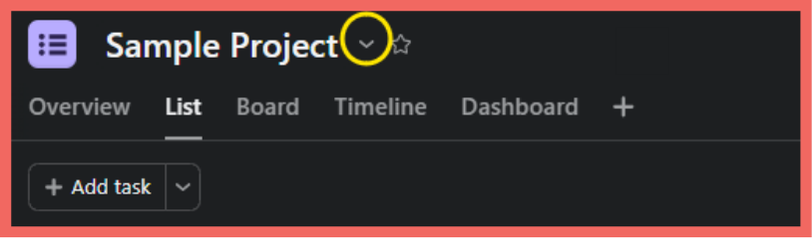
Step 3: Select “Export or sync” → “Project tasks CSV/XLSX”
In the dropdown menu, look for “Export or sync” near the bottom. Click it, then select “Project tasks CSV/XLSX.”

Step 4: Choose XLSX format
A dialog will appear letting you choose between CSV and XLSX. Select XLSX for a native Excel file.
Step 5: Download and open
The Excel file downloads automatically. Double-click to open it in Excel. No conversion needed.

Method 2: Export from list view with filters
If you only need specific tasks, apply filters before exporting.
- Switch to List view in your project
- Use the Filter button to narrow down by assignee, due date, status, or custom fields
- Export using the same dropdown method above
Important: The export includes only the tasks visible after filtering. This is useful for creating focused reports.
Method 3: Export search results
To export tasks across multiple projects:
- Use Advanced Search (magnifying glass in the top nav)
- Set your search criteria (projects, assignees, dates, etc.)
- Click the dropdown menu in the search results
- Select “Export to CSV”

This method is the only native way to combine data from multiple projects into a single export.
What data is included in Asana Excel exports?
Your Asana Excel export won’t contain all of the details that are visible in Asana. Here’s what to expect:
| Included | Not Included |
|---|---|
| Task name | Comments |
| Assignee | Attachments |
| Due date | Subtasks (exported separately) |
| Completion status | Task descriptions |
| Section/column name | Timeline dependencies |
| All custom fields | Activity history |
| Project name | |
| Tags |
The custom fields issue: Asana exports every custom field in your project, whether it’s relevant to your export or not. If your project has 30 custom fields, you get 30 extra columns, even if most are empty for the tasks you care about.
There’s no way to select which fields to export natively. You’ll need to delete unwanted columns manually in Excel, or use a reporting tool like BlinkMetrics that lets you choose your fields upfront.
Common Asana export problems (and solutions)
Problem: Too many custom fields in export
What happens: Your export has dozens of columns because Asana includes every custom field, even ones that aren’t used on most tasks.
Native workaround: Delete unwanted columns manually in Excel after export. This works, but it’s tedious if you export regularly.
Better solution: Use a reporting tool that lets you select specific fields. In BlinkMetrics, you choose exactly which Asana fields appear in your reports. No post-export cleanup needed.
Problem: Can’t export timeline view
What happens: The export option exists, but it exports task data as rows, not the visual timeline/Gantt layout.
Native workaround: None. Asana doesn’t support visual timeline exports. You can screenshot the timeline, but that’s not editable data.
Alternative: Build a Gantt chart in Excel manually from the exported data, or use a dedicated reporting tool that can create Gantt visualizations from Asana task data.
Problem: Need to export multiple projects
What happens: The project export only works one project at a time.
Native workaround: Use advanced search to search across multiple projects, then export the search results. This combines data but has limited filtering options.
Better solution: Reporting tools like BlinkMetrics can pull from multiple Asana projects simultaneously and combine the data automatically.
Problem: Export doesn’t include comments
What happens: Task comments are excluded from CSV exports entirely.
Native workaround: None for bulk export. You can copy comments from individual tasks manually.
API option: The Asana API can retrieve comments, but requires development work or a tool that supports it.
Problem: Want automated/scheduled exports
What happens: Every export requires manual clicks. There’s no way to schedule recurring exports natively.
Native workaround: None.
Solution: BlinkMetrics and similar tools can schedule automated exports to Excel, Google Sheets, or email. Set it once, get updated data on your schedule.
Advanced Asana export options
Using the Asana API for custom exports
For complete control over what you export, the Asana API provides access to:
- All task fields including comments and attachments
- Subtask hierarchies
- Historical data (with some limitations)
- Cross-project queries
This requires development resources or a no-code tool that connects to APIs (Zapier, Make, etc.). It’s powerful but not practical for one-off exports.
Third-Party export and reporting tools
Several tools extend Asana’s export capabilities:
| Tool | Best for |
|---|---|
| BlinkMetrics | Visual dashboards + automated exports + calculated metrics |
| Zapier/Make | Automated exports to spreadsheets on triggers |
| Unito | Two-way sync with other PM tools |
If you need more than basic exports (multi-project consolidation, visual reporting, or automation), a dedicated tool will save significant time versus manual workarounds.
Beyond Excel: When your stakeholder still won’t look at the spreadsheet
Here’s an uncomfortable truth: if your stakeholder isn’t logging into Asana, there’s a good chance they’re not excited about scrolling through a spreadsheet either.
The real problem: You can read the data and see the story in those rows. But your leadership can’t, and they shouldn’t have to. As one operations leader put it: “My mind works in that data. I can clearly see the story, but I realize other people can’t.”
What executives actually want:
- Visual project health — Red/yellow/green status at a glance, not 847 rows of tasks
- Trends, not snapshots — “Are we improving?” not “Here’s what happened to be true when I exported”
- Comparative views — How does this project compare to last month? Last quarter?
- Consolidated reporting — Project data + budget data + time tracking in one view
- Something they can understand in 30 seconds, not 30 minutes
This is where export-to-Excel hits its ceiling. You can spend hours every week formatting charts in Excel, or you can automate the whole thing.
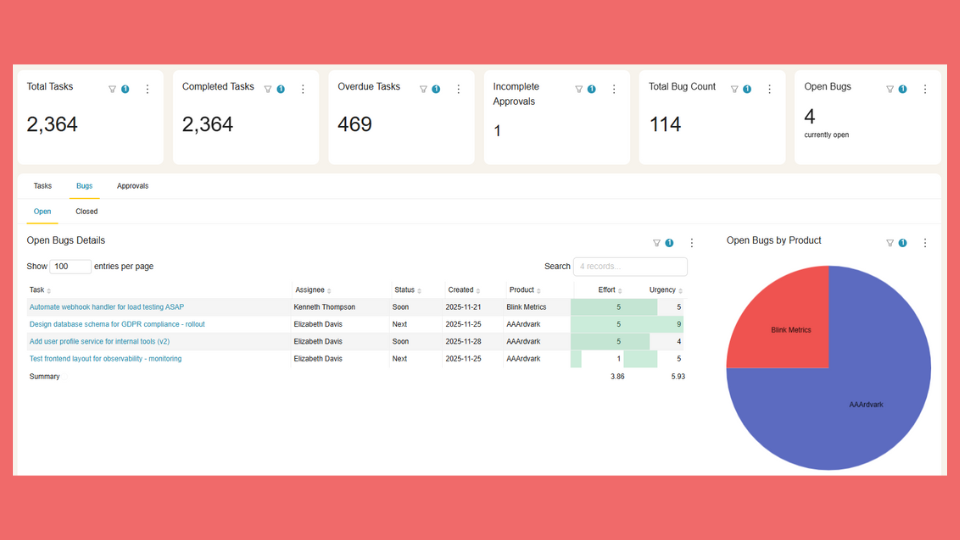
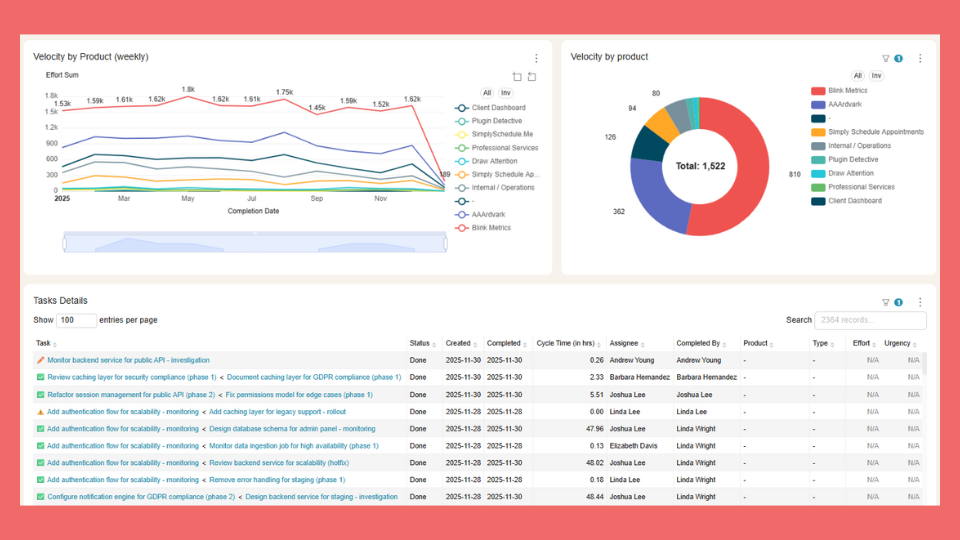
If you’re the one pulling data for someone who won’t log in, BlinkMetrics bridges this gap. Pull Asana data into visual dashboards that auto-update. Share a live link instead of a static spreadsheet. Let your leadership see what they need without you manually rebuilding reports every status meeting.


Frequently Asked Questions
Can you export Asana to Excel directly?
Yes. Asana now supports direct XLSX export. From the project dropdown menu to the right of your project title, select “Export or sync” → “Export project tasks as CSV/XLSX” and choose the XLSX option. The Excel file downloads directly. No conversion needed.
How do I export only specific fields from Asana?
Asana’s native export includes all custom fields automatically; there’s no field selection. Your options are: delete unwanted columns after export, or use a reporting tool that lets you choose fields before export.
Can I export multiple Asana projects at once?
Not with the standard project export. Use Advanced Search to query across multiple projects, then export the search results. For more control, use a reporting tool that supports multi-project data consolidation.
Is there a way to automate Asana exports?
Not natively. Asana doesn’t have scheduled or triggered exports. Tools like BlinkMetrics or Zapier can automate exports on a schedule or based on triggers.
What’s the best way to share Asana data with executives?
Excel exports work if your stakeholder is comfortable with spreadsheets. For executives who want visual summaries rather than raw data, a dashboard tool that connects to Asana (like BlinkMetrics) provides charts, status indicators, and trends that communicate project health at a glance.
Summary
Exporting Asana to Excel is straightforward:
- Native export: Project dropdown → Export or sync → Project tasks CSV/XLSX → Choose XLSX
- Limitations: All custom fields included (no selection), no timeline/Gantt export, single project at a time, no comments
- Workarounds: Advanced Search for multi-project exports, manual column cleanup for field selection
- Beyond Excel: For visual, executive-ready reporting, consider a dashboard tool that auto-updates from Asana
For basic data pulls, the native export does the job. Once you’re exporting regularly, cleaning up the same columns every time, or spending hours formatting charts for leadership, that’s when a dedicated reporting layer starts to pay off.
Want to skip the export-format-email cycle? See how BlinkMetrics creates visual Asana dashboards that auto-update and give your stakeholders what they actually need: answers, not rows.