
TL;DR: Asana now has a native Google Sheets export that’s available on Advanced and Enterprise plans, syncs one way, and caps at 500 rows. If you’re on a lower plan or need something beyond those limits, you’ll need to export a CSV and import it, use a connector tool, or connect Asana to a reporting tool that works across all plan tiers.
Here are four ways to get Asana data into Google Sheets, from native to fully automated.
Method 1: Native Google Sheets export (Advanced/Enterprise only)
Asana added a native Google Sheets export that syncs live data directly without a CSV step.
Requirements: Asana Advanced or Enterprise plan. This option doesn’t appear in the export menu on free, Starter, or Premium plans.
Setup:
- In Google Sheets, go to Extensions > Add-ons > Get add-ons
- Search for “Asana” and install the official Asana add-on from the Google Workspace Marketplace
- In Asana, open your project or portfolio and click the dropdown arrow (▼) next to its name
- Select Export, then choose Google Sheets
- Copy the link from the popup and paste it into your Google Sheet
- Authorize Asana to connect to your Google account when prompted
What you get: A sheet with three tabs: one explaining how to use the sheet, one with sortable and filterable project data, and one locked tab with the live source data that stays connected to Asana.
Key limitations:
- 500-row limit — not suitable for large projects
- One-way only — data flows from Asana to Sheets; you can’t push changes back
- Milestones excluded — milestone tasks don’t appear in the export
- Plan-gated — Advanced or Enterprise required
Method 2: CSV export and import
If you’re not on an Advanced or Enterprise plan, this is the standard path. Asana exports to CSV, which you then import into Google Sheets.
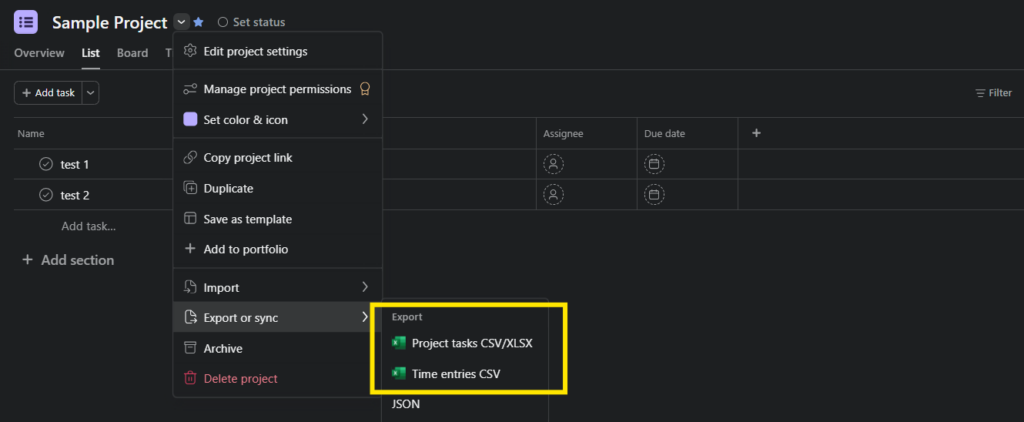
\To export from Asana: Open your project, click the dropdown arrow next to the project name, select Export or Sync, and choose CSV. For the full step-by-step, including multi-project exports, see how to export from Asana.
To import into Google Sheets:
- Open Google Sheets and create a new spreadsheet
- Go to File > Import
- Upload your CSV file
- Choose “Replace spreadsheet” or “Insert new sheet(s)”
- Set the separator type to “Comma” if it isn’t detected automatically
The file imports cleanly. The limitation: you’ll repeat this whole process every time you need fresh numbers.
Method 3: Third-party integrations
If you need Asana data in Google Sheets regularly but don’t have Advanced/Enterprise access, a connector tool removes the manual export step.
| Tool | What it does |
|---|---|
| Coupler.io | Scheduled syncs from Asana to Sheets on a set interval |
| Zapier | Triggered transfers when tasks are created or updated |
Coupler.io is simpler if you want a recurring data pull on a schedule. Zapier gives more flexibility when you want exports tied to specific task events, like a task moving to “Complete.”
Both options add setup time and ongoing subscription costs.
Method 4: Skip the spreadsheet
Before setting up a sync, it’s worth asking what you’ll actually do with the data in Google Sheets. If the answer is “build charts and reports to share with leadership,” a dashboard tool may be faster without the spreadsheet maintenance.
BlinkMetrics connects directly to Asana and builds dashboards that update automatically. It works regardless of which Asana plan you’re on. No Advanced or Enterprise subscription is required to get live reporting. You choose which fields appear in your reports, pull from multiple projects at once, and share a live dashboard link instead of a static file.
For teams on lower Asana plans who still need recurring reports, or for anyone hitting the 500-row cap of the native export, that’s the cycle worth cutting.
Which method fits your use case?
| Use case | Best method |
|---|---|
| Advanced/Enterprise plan, live sync to Sheets | Native Google Sheets export |
| One-time data pull, any plan | CSV export and import |
| Ongoing sync, lower Asana plan | Coupler.io or Zapier |
| Recurring reports without plan restrictions | Dashboard tool (BlinkMetrics) |
Related guides:
- How to export from Asana — the complete guide
- Asana export to CSV — CSV format details and troubleshooting
- Export Asana to Excel — XLSX export and Excel-specific tips
- Export Asana to PDF — Print and dashboard approaches
- Asana export comments — Getting discussion data out
- Asana JSON export — API-based structured data export
Frequently asked questions
Can Asana export directly to Google Sheets?Yes, but only on Advanced and Enterprise plans. From your project dropdown, select Export or sync > Google Sheets and follow the setup steps. On free, Starter, or Premium plans, export to CSV first, then use File > Import in Google Sheets to bring it in.
How do I sync Asana with Google Sheets automatically?On Advanced or Enterprise plans, use the native Google Sheets export (project dropdown → Export → Google Sheets) for automatic live sync. On other plans, use Coupler.io for scheduled syncs or Zapier to trigger data transfers when tasks meet specific conditions.
What’s missing from an Asana CSV export?Task comments, attachments, and activity history don’t appear in CSV exports. You’ll also get every custom field included, whether you need them or not. For a full breakdown, see the Asana export guide.
Do dates import correctly into Google Sheets?Asana exports dates in ISO format (YYYY-MM-DD). If dates show up as plain numbers after import, select the column and format it as Date in Google Sheets.