
Scorecard Digests
Introduction
In this guide, we’ll go over how to set up Scorecard Digests in BlinkMetrics. Digests send you a regular email summary of your scorecard - highlighting big wins, flagging what needs attention, and giving you a snapshot of all your metrics.
Creating a Digest
Scorecard Digests Page
Navigate to the Scorecard Digests menu item in the navigation in the top left corner, where the Profile and Manage Workspace options can be accessed.
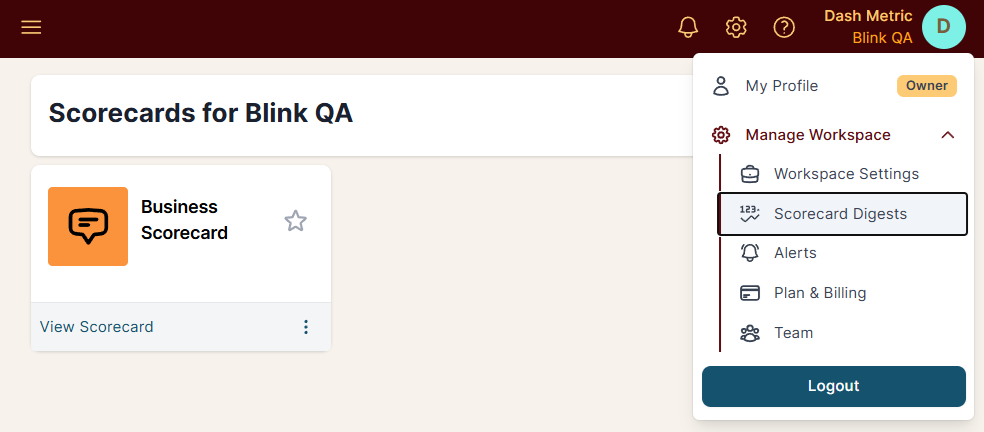
Scorecard Digests is selected in the navigation under Manage Workspace.
On the Scorecard Digests page, click the + New Scorecard Digest button.
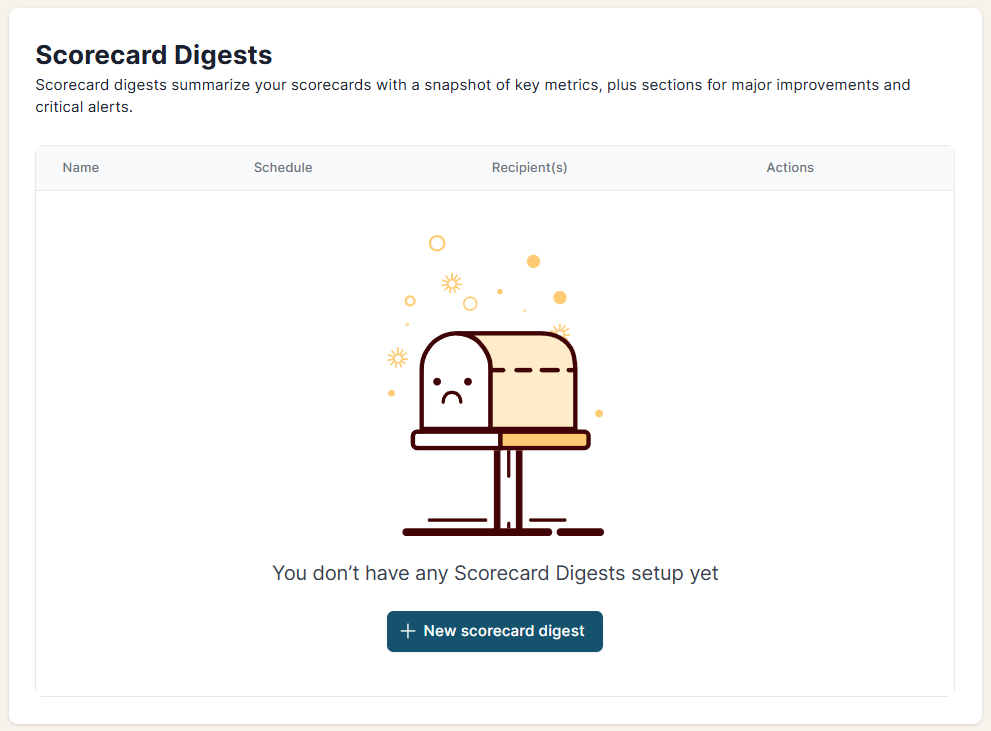
Creating a New Scorecard Digest
Configure Your Digest
On the Create a new Scorecard Digest page, a series of fields require your input to Choose a Scorecard, set the frequency (weekly, monthly, quarterly), and assign the digest a Digest Name.
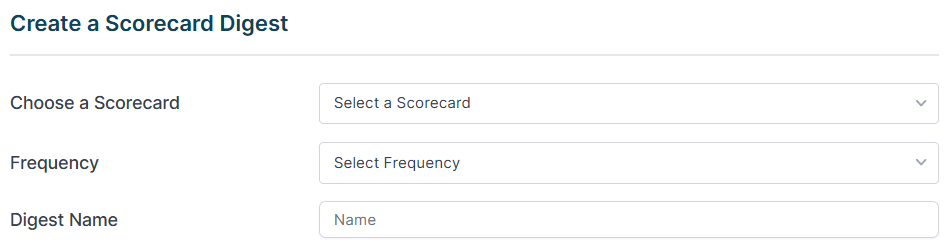
Assigning a scorecard, frequency, and name for the Scorecard Digest
Set Your Thresholds
The default for Big Improvements Threshold is 30% to highlight a metric as a win. This is based on each metric’s goal direction, so for example, if you have a metric with a goal of needing to go down, a big drop counts as an improvement.
The Critical Alert Threshold is the percent change needed to flag something as needing attention. The default is, of course, 30%, and can be changed to your team’s liking as well. This is the same logic - this flags movement against a metric’s goal.
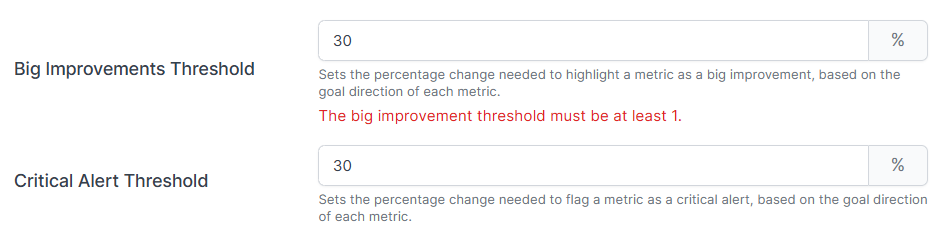
Assigning a Big Improvements and Critical Alert threshold to the digest.
If your metrics don’t usually swing by 30%, try lowering the threshold so your digest highlights more changes.
Choose Recipients
Choose the recipients who should receive the Scorecard Digest. It can be sent to just you, or you and a few selected users of your liking.
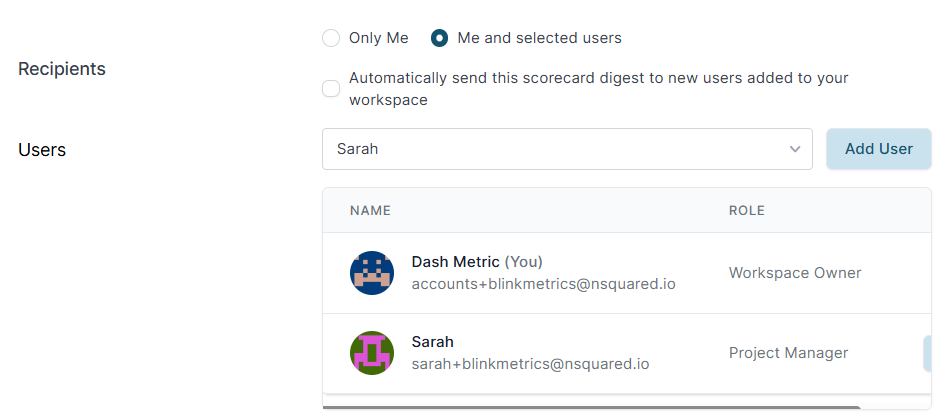
Recipients can be set for each digest, whether that be just you or additional users.
Create Digest
Click Create Digest, and you’re all set. The Digests list page will show the next scheduled send date.
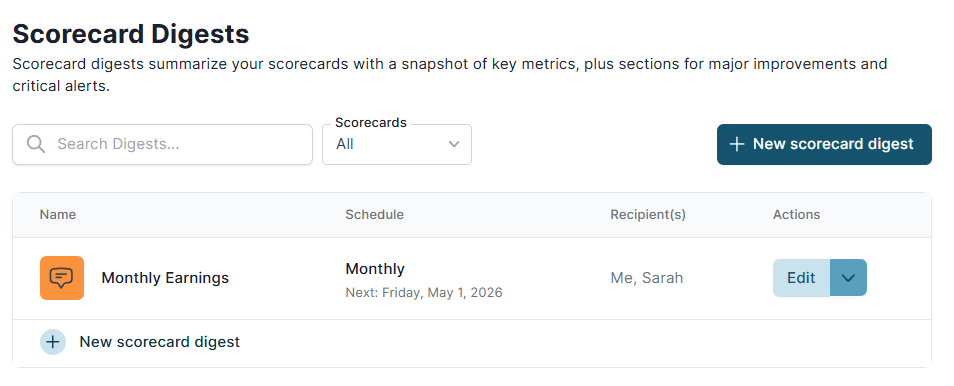
New Scorecard Digest with information on the name, scheduled date, and recipients.
Understanding The Digest Email
The Scorecard Digest email will display the big improvements for metrics under Key Wins, and anything that is set to an all-time low will be under Needs Attention.
In addition, Metrics Snapshot will display all the information about the metrics for that month.
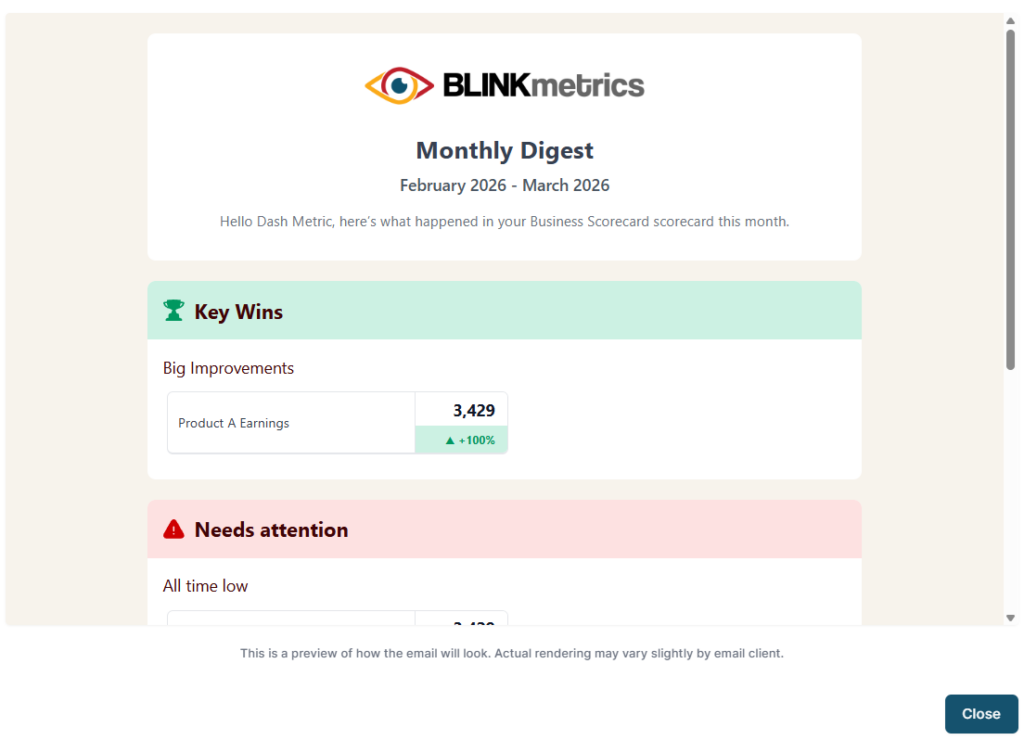
Scorecard Digest Preview
Managing The Digest
From the Scorecard Digests page, each digest has an actions dropdown:
- Edit - update the name, schedule, thresholds, or recipients
- Preview - see what the email looks like before it sends out
- Delete - remove a digest
And that’s it! You’ll get your scorecard highlights delivered right to your inbox.