
TL;DR: Open your Asana project, click the dropdown arrow next to the project name, select “Export/Print,” then choose CSV, XLSX, JSON, or Google Sheets (Advanced/Enterprise plans only). The file downloads immediately. For cross-project exports, use Advanced Search to filter tasks across multiple projects, then export from the search results.
This guide covers every native export method Asana offers, what data you’ll actually get (and what’s missing), and how to work around the limitations that trip up most users.
Asana export options at a glance
Asana provides several ways to get data out, depending on what you need and what access level you have:
| Export method | What it exports | Format | Access level |
|---|---|---|---|
| Project export | All tasks in one project | CSV, XLSX, or JSON | Any user |
| Google Sheets export | Tasks/portfolios with live sync | Google Sheets (live) | Advanced or Enterprise only |
| Search results export | Filtered tasks across projects | CSV | Any user |
| Admin Console export | Organization-wide data | JSON | Enterprise admins |
| API export | Any data via requests | JSON | Developers |
Most users will use the first three methods. Admin Console and API exports require elevated permissions or technical resources.
How to export an Asana project (step-by-step)
This is the most common export scenario: getting all tasks from a single project into a file you can open in Excel, Google Sheets, or another tool.
Step 1: Navigate to your project
Open the Asana project you want to export. You can be in List, Board, Timeline, or Calendar view. The export option works from any of them.
Step 2: Access the export menu
Click the small dropdown arrow (▼) next to your project name in the header. This opens the project actions menu.
Step 3: Choose your export format
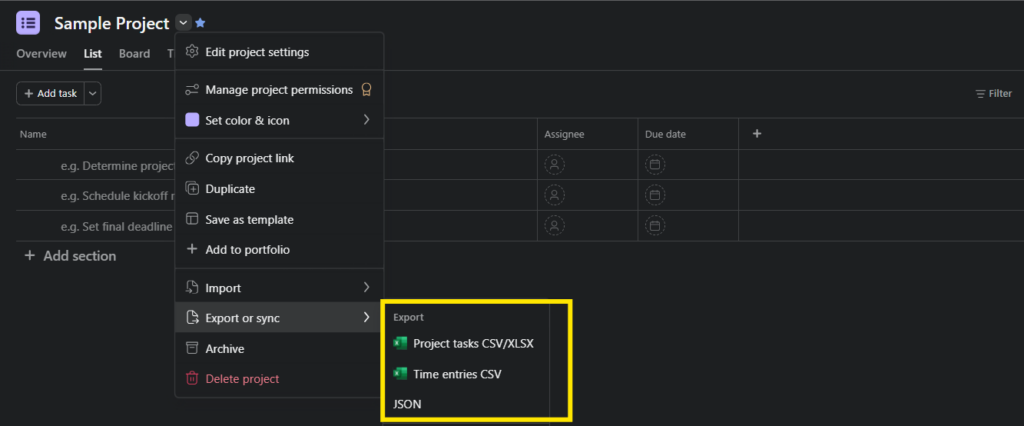
Select Export or Sync from the dropdown menu. You’ll see options for:
- CSV — Opens in Excel, Google Sheets, or any spreadsheet tool
- XLSX — Native Excel format, no conversion needed
- JSON — Structured data format for developers or data tools
- Google Sheets — Live-syncing export directly to a Google Sheet (Advanced and Enterprise plans only; 500-row limit)
Step 4: Download and open your file
The file downloads immediately to your computer. For CSV exports, double-click to open in your default spreadsheet application.
Tip: If special characters look garbled in Excel, try opening the CSV in Google Sheets instead, or use Excel’s “Data > From Text/CSV” import with UTF-8 encoding.
Exporting tasks from search results (multi-project export)
Need to export tasks from multiple projects at once? Asana doesn’t have a built-in multi-project export, but you can use Advanced Search as a workaround.
Step 1: Open Advanced Search
Click the magnifying glass icon in the top navigation bar, then select “Advanced Search” at the bottom of the search dropdown.
Step 2: Set your search criteria
Filter by any combination of:
- Multiple projects
- Assignee
- Due date range
- Completion status
- Custom fields
- Tags
This lets you create a cross-project task list that matches exactly what you need to export.
Step 3: Export search results
Once your search results appear, click the small dropdown arrow (▼) next to the search results header and select Export to CSV.
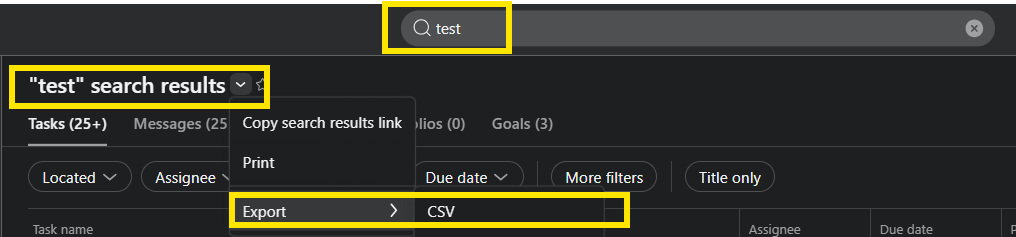
The export includes all tasks matching your search criteria, regardless of which project they belong to.
Note: Search result exports are CSV only. JSON export isn’t available from search results. Also, exports work for task-based searches only, not project-based search views.
What data is included in Asana exports?
Understanding what’s in your export (and what’s missing) will save you frustration later.
Data that exports
| Field | CSV | JSON |
|---|---|---|
| Task name | ✓ | ✓ |
| Assignee | ✓ | ✓ |
| Due date | ✓ | ✓ |
| Completion status | ✓ | ✓ |
| Section/column | ✓ | ✓ |
| Tags | ✓ | ✓ |
| All custom fields | ✓ | ✓ |
| Project name | ✓ | ✓ |
| Task description | No | ✓ |
| Subtasks | Separate rows | Nested |
Data that doesn’t export
This is where most users hit problems:
| Missing data | Workaround |
|---|---|
| Task comments | No native workaround. See our guide to exporting Asana comments |
| Attachments | Must download manually from each task |
| Timeline layout | Export gives task dates, not visual layout |
| Dependencies | Partially available in JSON, not in CSV |
| Activity history | Not available in any export format |
Understanding Asana export limitations
Asana’s export gets basic data out reliably. The problems show up when you need precision, selectivity, or anything beyond a point-in-time snapshot.
The custom field problem
Asana exports every custom field in your project, whether you want them or not. If your project has 30 custom fields but you only care about 3, you still get all 30 columns in your export.
There’s no way to select which fields export. Your options:
- Delete unwanted columns manually in Excel after export
- Use a reporting tool that lets you choose fields before export
Comments don’t export
Task comments are excluded from both CSV and JSON exports. This is one of the most common complaints about Asana’s export functionality.
If you need comments for compliance, auditing, or documentation, your options are limited:
- Copy comments manually from each task (doesn’t scale)
- Use the Asana API to fetch comments programmatically
- Use a third-party tool that syncs comments
For the full breakdown, see our guide to exporting Asana tasks with comments.
No historical snapshots
Asana exports show data as it exists right now. There’s no built-in way to:
- See what your project looked like last month
- Track trends over time
- Compare completion rates across periods
Every export is a snapshot. If you need historical tracking, you’ll need to either export manually on a schedule or use a tool that takes automatic snapshots.
Large project performance
Projects with 500+ tasks can be slow to export, and very large projects occasionally produce incomplete exports. If you’re exporting a large project, verify the row count in your file matches your task count in Asana.
Export best practices
A few minutes of preparation can save significant cleanup time.
Before you export
- Standardize custom field values so your export has consistent data (e.g., all “High” vs. a mix of “High,” “HIGH,” and “high priority”)
- Use sections to organize tasks. Sections export as a column, making filtering easier in your spreadsheet.
After you export
- Check date formats — Asana exports dates in ISO format (YYYY-MM-DD). Excel may display these as numbers instead of dates. Format the column as dates.
- Remove unnecessary columns — Delete any custom field columns you don’t need.
- Verify completeness — Compare row count to task count in Asana, especially for large projects.
For regular exports
If you’re exporting the same data repeatedly (weekly reports, monthly backups), consider:
- Creating a saved search with your exact filter criteria
- Using a third-party tool that can schedule automated exports
- Building dashboards that pull data automatically so you don’t need to export at all
Exporting Asana data for specific use cases
The best export approach depends on what you’re trying to accomplish.
Stakeholder reports
Need: Formatted data that executives can understand without digging through rows.
Problem: Raw exports are too detailed. Executives want summaries, not task lists.
Solutions:
- Export to CSV, then build pivot tables and charts in Excel
- Use Advanced Search to export only the subset that matters
- Connect Asana to a dashboard tool that does the formatting and creates visualizations for you
Migration to another tool
Need: Complete project data to import into a new system.
Problem: Comments, attachments, and dependencies don’t export cleanly.
Solutions:
- Export CSV for task data, accept loss of comments
- Check if your new tool has a direct Asana migration feature
- Consider third-party migration services for complex projects
Compliance and audit
Need: Documentation of work completed, decisions made, and timelines.
Problem: Comments (where decisions are documented) don’t export.
Solutions:
- Export task data for completion records
- Screenshot or manually document key comment threads
- Use the Asana API for programmatic comment extraction
Data analysis
Need: Asana data in a format you can query, filter, and visualize.
Problem: CSV exports require manual refresh. No historical tracking.
Solutions:
- Export to CSV and import into your analysis tool
- Connect Asana via API for live data
- Use a reporting platform that maintains historical data
Alternatives to manual Asana export
When native exports don’t cover your needs, these options can fill the gaps.
Asana API
The Asana API provides programmatic access to nearly all Asana data, including comments and attachments that don’t appear in native exports.
Best for: Teams with development resources who need custom integrations or automated workflows.
Requires: API knowledge, authentication setup, handling pagination for large datasets.
For a detailed walkthrough, see our guide to Asana JSON export via API.
Third-party integration tools
| Tool type | Examples | Best for |
|---|---|---|
| Automation | Zapier, Make | Triggered exports on task changes |
| Sync | Unito, Coupler.io | Ongoing sync to spreadsheets |
| Backup | Rewind, Backupify | Organization-wide data protection |
Dashboard and reporting platforms
If your goal is reporting rather than raw data extraction, a dashboard tool may be more efficient than repeated exports.
At BlinkMetrics, we built Asana integration specifically for teams who’ve hit the ceiling of native exports:
- Selective field export — Choose exactly which fields appear in reports
- Cross-project dashboards — Combine data from multiple Asana projects
- Automatic refresh — Data updates daily without manual exports
- Historical tracking — See how metrics change over time, not just current state
- Calculated metrics — Build formulas from your Asana data (on-time delivery rate, velocity trends)
If you’re exporting the same data repeatedly or spending hours formatting exports into presentable reports, automated dashboards eliminate that cycle.
Frequently asked questions
Can you export all Asana projects at once?
No. Asana’s native export works on one project at a time. For multi-project exports, use Advanced Search to filter tasks across projects, then export the search results. Enterprise admins can request a full organization export through Admin Console, but this is a bulk data dump, not a formatted report.
Does Asana export include subtasks?
Yes, but subtasks appear as separate rows in CSV exports, not nested under their parent tasks. In JSON exports, subtasks are nested within their parent task data. If subtask context matters, JSON may be the better format.
How do I export Asana with comments?
You can’t through native export. Comments are excluded from both CSV and JSON exports. Options include manually copying comments, using the Asana API, or using a third-party tool that syncs comments. See our full guide to exporting Asana comments.
Can I schedule automatic Asana exports?
Not natively. Asana doesn’t have scheduled or triggered exports. Third-party tools like Zapier, Coupler.io, or BlinkMetrics can automate exports on a schedule.
What’s the best format for Asana export: CSV or JSON?
CSV for spreadsheet work (Excel, Google Sheets, analysis). JSON for developers, integrations, or when you need task descriptions and nested subtasks. Most users choose CSV.
How do I export Asana to Excel?
From your project, click the dropdown arrow next to the project name, select Export/Print, and choose XLSX for a native Excel file (or CSV if you prefer). For detailed Excel-specific guidance, see our Asana to Excel export guide.
How do I export Asana to Google Sheets?
On Advanced and Enterprise plans, Asana now exports directly to Google Sheets via a native live sync. From your project dropdown, select Export > Google Sheets, install the Asana add-on from the Google Workspace Marketplace, and authorize the connection. Note the 500-row limit and that sync is one-way only. On free, Starter, or Premium plans, export to CSV and import into Google Sheets via File > Import. See our export Asana to Google Sheets guide.
Summary
Asana’s native export handles basic needs: CSV, XLSX, or JSON from a single project, a Google Sheets live sync for Advanced/Enterprise plans, or CSV export from search results for multi-project data.
Where it falls short:
- Can’t select which fields export (all custom fields included)
- Comments, attachments, and activity history don’t export
- No scheduled exports or historical tracking
- Large projects can have performance issues
For simple, occasional exports, native tools work fine. If you’re exporting regularly, need historical data, or want stakeholder-ready reports without manual formatting, a dedicated reporting tool will save significant time.
Related guides:
- Export Asana to Excel — XLSX export and Excel-specific tips
- Asana export to CSV — CSV format details and troubleshooting
- Export Asana to Google Sheets — Native options. workarounds and alternatives
- Export Asana to PDF — Print and dashboard approaches
- Asana export comments — Getting discussion data out
- Asana JSON export — API-based structured data export