
TL;DR: Asana doesn’t have a native PDF export. Your options are browser print-to-PDF (quick but unpolished), exporting to Excel and converting there (more formatting control), or using a dashboard tool to generate a clean, shareable PDF from your Asana data.
Most teams want a PDF to share project status with someone who doesn’t have Asana access: a client, an executive, or a stakeholder reviewing a report offline. Here are three ways to get there.
Why Asana PDF export is harder than it should be
Asana can export your project data as CSV, XLSX, or JSON. PDF isn’t on the list. For sharing data with non-Asana users, that gap matters, especially when the audience expects something that looks like a report, not a raw spreadsheet.
The workarounds work, but each has trade-offs worth knowing before you pick one.
Method 1: Browser print-to-PDF
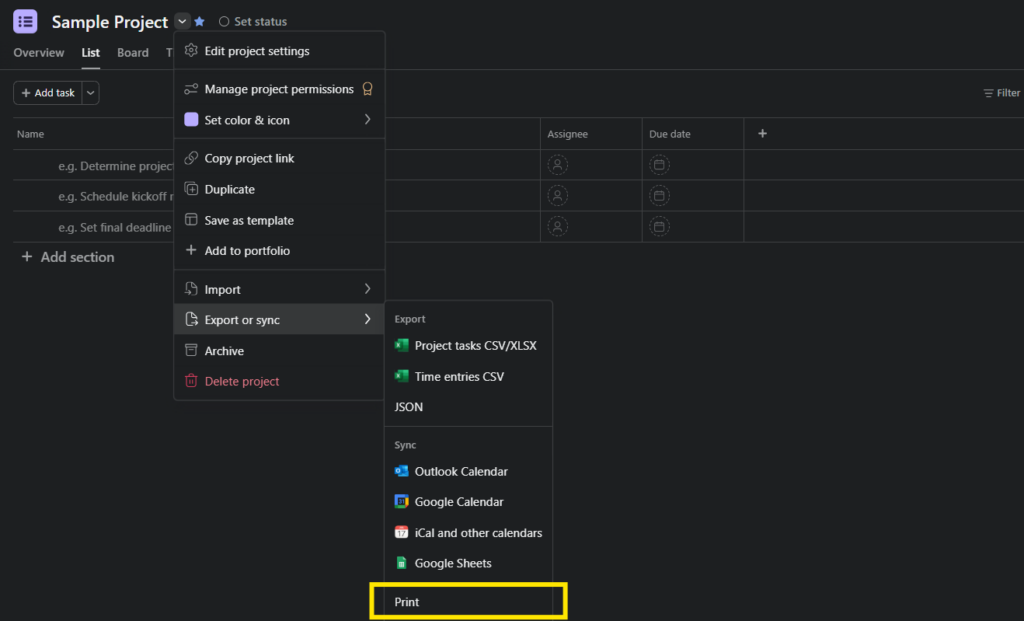
Every browser has a built-in print-to-PDF option. From your Asana project, press Ctrl+P (or Cmd+P on Mac) and select “Save as PDF” instead of a printer.
This works for a quick snapshot. The output isn’t great: task lists get split across pages, the timeline view rarely renders cleanly, and you can’t control what gets included. For an internal reference, it’s fine. For a client or executive presentation, it usually falls short.
Method 2: Export to Excel or CSV, then convert to PDF
The more reliable approach: export your Asana project to Excel or export your Asana project to csv, format the data in your spreadsheet, then save or print as PDF from there.
This gives you control over what appears. You can remove unwanted columns, add charts, and clean up the layout before converting. The trade-off is time. Formatting the spreadsheet each time you need a fresh report adds up, especially if this is a recurring deliverable.
For a one-time export or an occasional report, this works well.
Method 3: Dashboard reporting tools
If you’re generating the same PDF report on a regular schedule, or if the audience expects polished output, a dashboard tool is more efficient than rebuilding a spreadsheet each time.
BlinkMetrics connects directly to Asana and builds formatted dashboards from your project data. You can export to PDF with one click. The data updates automatically, so you’re not re-exporting and reformatting manually. This is also the only option that produces a clean PDF of timeline and Gantt data. Browser print can’t do it reliably, and a raw CSV export gives you dates as rows rather than a visual layout.
Which method fits your situation?
| Situation | Best option |
|---|---|
| Quick one-time snapshot | Browser print-to-PDF |
| Occasional report with formatting control | Export to Excel, convert to PDF |
| Recurring reports for leadership or clients | Dashboard tool |
| Clean PDF of timeline or Gantt | Dashboard tool |
Related guides:
- How to export from Asana — the complete guide
- Asana export to CSV — CSV format details and troubleshooting
- Export Asana to Google Sheets — Native options. workarounds and alternatives
- Export Asana to Excel — XLSX export and Excel-specific tips
- Asana export comments — Getting discussion data out
- Asana JSON export — API-based structured data export
Frequently asked questions
No. Asana exports to CSV, XLSX, and JSON only. To get a PDF, you’ll need to use browser print, convert an Excel export, or use a reporting tool that generates PDFs from your Asana data.
There’s no direct way to export the timeline view as a clean PDF. Browser print captures what’s on screen but often cuts off or misformats the layout. A dashboard tool like BlinkMetrics can generate a formatted timeline or Gantt PDF from your Asana task data.
PDF works for static snapshots. For ongoing sharing, a live dashboard link is often more practical. The people you’re sharing with see current data without needing an Asana account. BlinkMetrics supports both: export to PDF or share a live link.