
Connecting to TikTok Shop
Introduction
In this guide, we’ll go over how to create the TikTok Shop Connection for BlinkMetrics. This will allow BlinkMetrics to pull your shop’s orders, products, returns, and finance statements from TikTok Shop as a Source.
Before you start, make sure you can log in to TikTok Shop Seller Center with your shop’s main account. TikTok only lets the main account authorize apps like BlinkMetrics. If someone else holds it, see Permissions Needed.
Authorizing TikTok Shop Connection
1. Go to the Connections Page
To create the TikTok Shop Connection, click on the Settings cog icon in the header > select the Connections menu item. This will open the Connections page.

2. Add Connection
On the Connections page, click the Add Connection button.

3. Select TikTok Shop as the Source
From the Connection Stepper interface, search for and select TikTok Shop in the Select Source tab. The stepper moves on to the Set Up Credentials tab by itself.
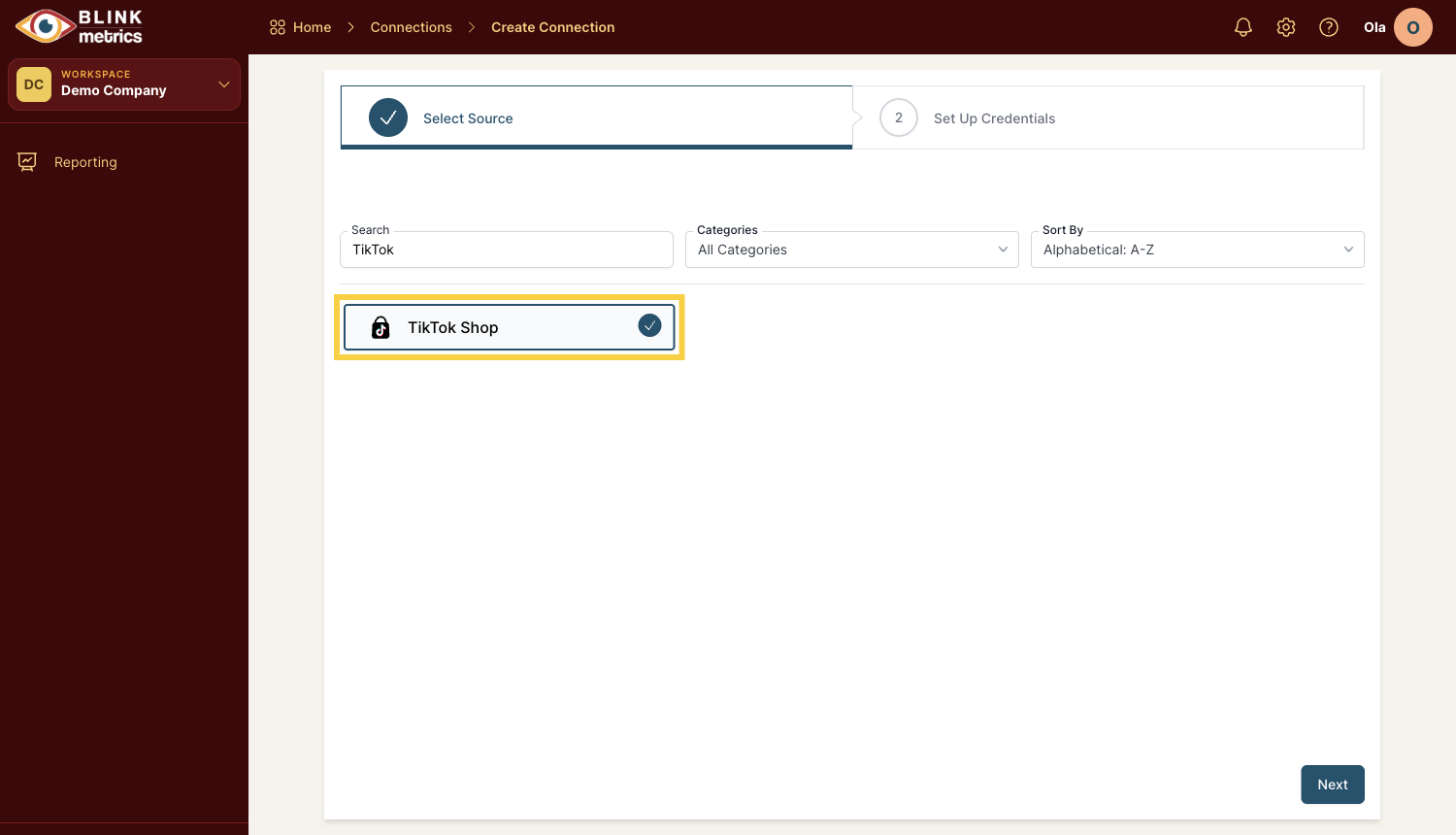
4. Continue with TikTok Shop
In the Set Up Credentials tab, click the Continue with TikTok Shop button. This starts the permission-granting process so BlinkMetrics can connect to your shop.
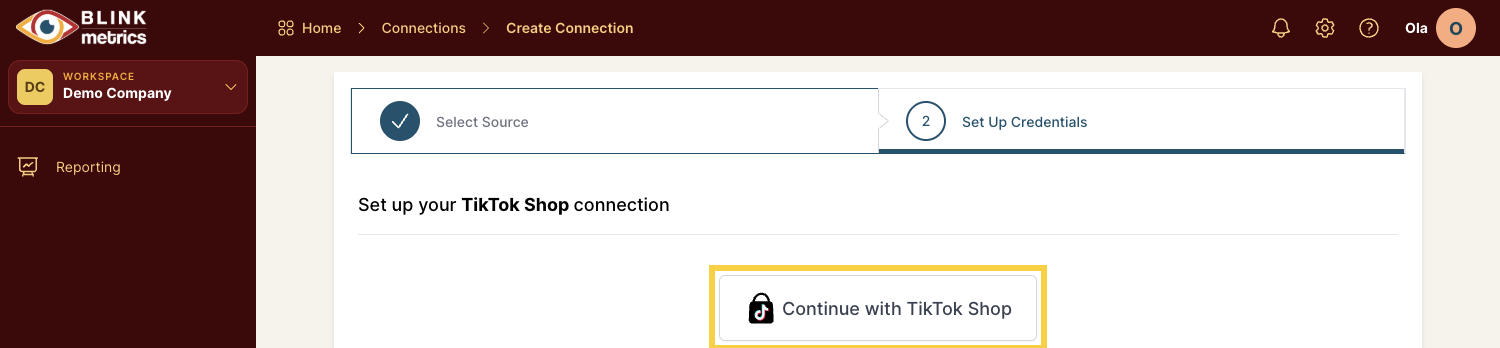
5. Log In with Your Main Account
Clicking Continue with TikTok Shop takes you to the TikTok Shop Seller Center Log in page. Log in with your shop’s main account, using its email or phone number, or the Log in with TikTok account, Google or Apple option you set it up with.
Already logged in to Seller Center in this browser? Check that it’s the main account before you continue.
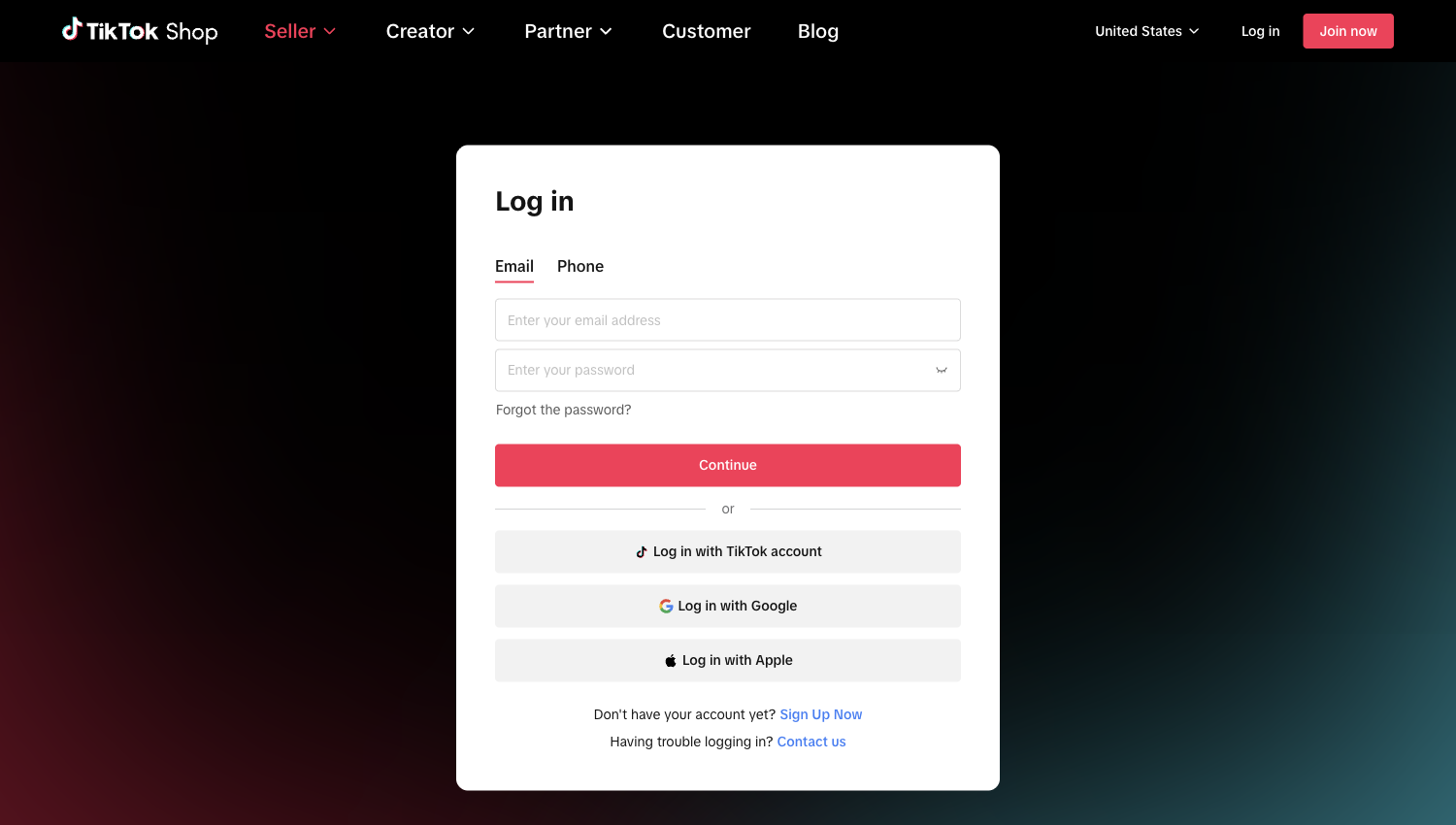
Permissions Needed
You must create the Connection using your shop’s main account. This is the account that registered the shop in TikTok Shop Seller Center. TikTok only lets the main account authorize apps, so sub-accounts (the logins a shop owner adds for team members) can’t authorize BlinkMetrics, no matter which role they’ve been given.
If you log in with a sub-account, TikTok stops you with the message Sub-accounts are unable to authorize. Log out of Seller Center, then start again from step 4 with the main account.
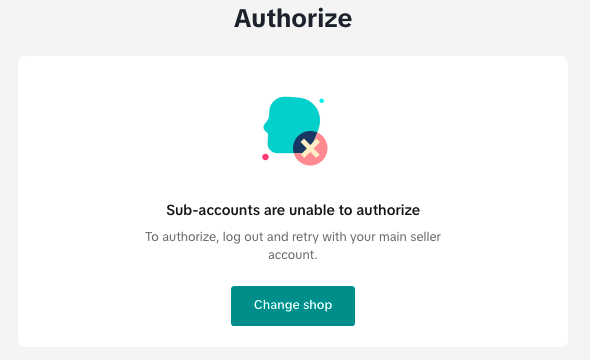
If you don’t have the main account, you don’t need its password. Send a Connection Request to the person who does:
- On the Connections page, click the caret next to the Add Connection button, then select Create Connection Request.
- Select TikTok Shop as the Source and click Next.
- On the Share Link step, leave OAuth selected, click Copy, and send the link to the main account holder.
They log in with the main account and approve access, and the Connection lands in your workspace. They don’t need a BlinkMetrics account. The link works once and expires after 7 days.
For a full walkthrough of Connection Requests, see Requesting a Shopify Connection from Someone Else. The steps are the same, except you pick TikTok Shop and there’s no store domain to enter.
6. Authorize BlinkMetrics
After you log in, TikTok shows what BlinkMetrics is asking to access. BlinkMetrics reads your shop details, orders, products, returns, and finance statements to build your reports. It doesn’t change anything in your shop.
Click Authorize to approve access. TikTok then sends you back to BlinkMetrics.
7. Review Privacy and Save Connection
Back in BlinkMetrics, you’ll see the message Connection Created Successfully. The Connection is named after your shop, for example TikTok Shop (Your Shop Name).
From this page you can review:
- Source, Connected By, and Last Synced At. Your first sync starts automatically and brings in up to two years of history, so your first numbers can take a little while to appear. After that, your TikTok Shop data refreshes about once a day.
And edit the following:
- Name: Used for organizational purposes. Each Source can have multiple Connections, so it’s helpful to see who authorized the Connection or which shop it points to.
- Privacy: You can choose who it’s shared with: Shared with Workspace, Private to Me, or Shared with Team.
If your main account authorized more than one shop, they all come through this one Connection, and your order count adds them together.
When you’re done, click Save, and now you’re done! You can now use the Connection to pull data from the TikTok Shop Source.