
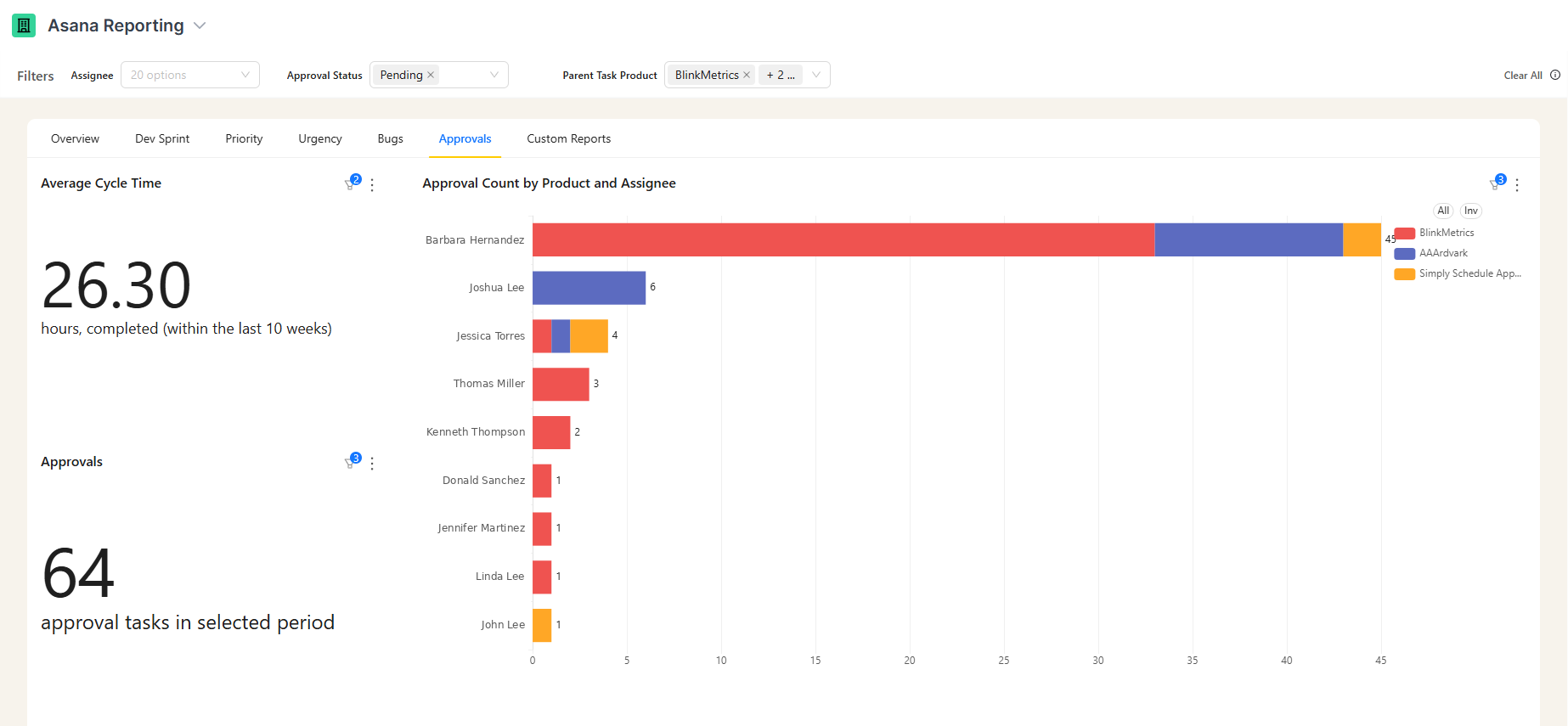
Short answer: Asana can count approval tasks by assignee, but two limits get in the way. Its cross-project reporting lives on higher-tier plans, and it’s a chart you build and maintain yourself. Seeing total approval volume per person across every project, and tracking how it shifts over time, is where an external reporting layer earns its place.
The workload imbalance problem
In many teams, one or two people end up as the default approver for almost everything. This happens gradually: they get added to approval templates, or they’re the only ones with the authority to sign off on certain deliverable types. Over time, their approval queue grows while others have very little.
The first sign is usually a missed deadline. A project slips because a task sat in approval for a week. You open the task and the approver has 18 other pending approvals. Nobody noticed, because nobody had their total queue in view.
By the time the imbalance is obvious, it’s already affecting delivery.
Inside a single project, Asana handles this fine: you can see how many approvals are pending and filter by assignee. A ranked, cross-project view of every team member’s pending approvals is also possible in Asana, but only on its higher-tier reporting, and only if you build and maintain the chart yourself.
What Asana shows about approval assignments
Per-project assignee filtering works out of the box. Inside any one project, you can see who’s assigned to each approval task, filter the list by a single person, and spot-check their pending count.
Asana’s Universal Reporting goes further: on its higher-tier plans, it can chart approval-type tasks grouped by assignee, and you can point it at a portfolio to span several projects. Three things still get in the way of using it for ongoing workload monitoring:
- It’s tier-gated. Both the reporting and the approval task type sit on Asana’s paid plans, so not every workspace can build the view.
- It’s manual. You configure each chart yourself and re-scope it as projects come and go.
- It stays inside Asana. You can’t line approval load up against time tracked, billing, or CRM data, and the history is limited to Asana’s reporting window.
The out-of-the-box project view works for small teams with a single project. It breaks down for teams running 3-5 concurrent projects, where approvals scatter across multiple project views and no single screen shows the full picture. (For the broader version of this gap, see Asana portfolio reporting.)
Manual approach: auditing approval workload across projects
For teams without higher-tier reporting, a manual audit works at low volume:
Option 1: Advanced Search filter
Asana’s Advanced Search (available on paid plans) lets you filter tasks by type across the workspace. Searching for approval-type tasks with incomplete status and grouping by assignee gives you a rough sense of who has the most pending approvals. It won’t give you exact counts without manual tallying.
Option 2: CSV export
Export approval tasks from each active project to CSV. Combine the exports in a spreadsheet, filter for incomplete status, and build a pivot table with assignee as rows and count as values.
This gives accurate counts as of the export time. You re-export whenever you want a current view, which limits its usefulness for ongoing monitoring.
For teams with 2-3 active projects and fewer than 30 total pending approvals, the manual approach is manageable. Past that, the effort scales faster than the value.
Getting a live approval volume view
BlinkMetrics reads approval tasks across every project in your Asana workspace and ranks them by approver, the person each approval is assigned to, built and maintained for you rather than being one more chart you configure. For the period you select, the dashboard shows each person’s approval count side by side, the average approval cycle time, and the total number of approvals handled. Filter by approval status to scope the view to what’s still pending or what’s already resolved.
With this view, the overloaded approver is visible immediately. One person holding 45 of the team’s 64 open approvals takes no filtering or exporting to see.
Specific things this enables:
Weekly ops review: open the meeting with the approval count chart. Redistribute the load before the imbalance becomes a blocker instead of after.
Template audit: if one person shows up on far more approvals than others, check whether they’re the default approver on many task templates. Fixing the templates fixes the distribution at the source.
Speed check: the average cycle time tells you how long approvals actually take end to end, from creation to sign-off. Read it next to the per-person counts to see whether your highest-volume approver is also your slowest.
Widen the window: change the period to see who has carried the most approval volume over a quarter, not just this week.
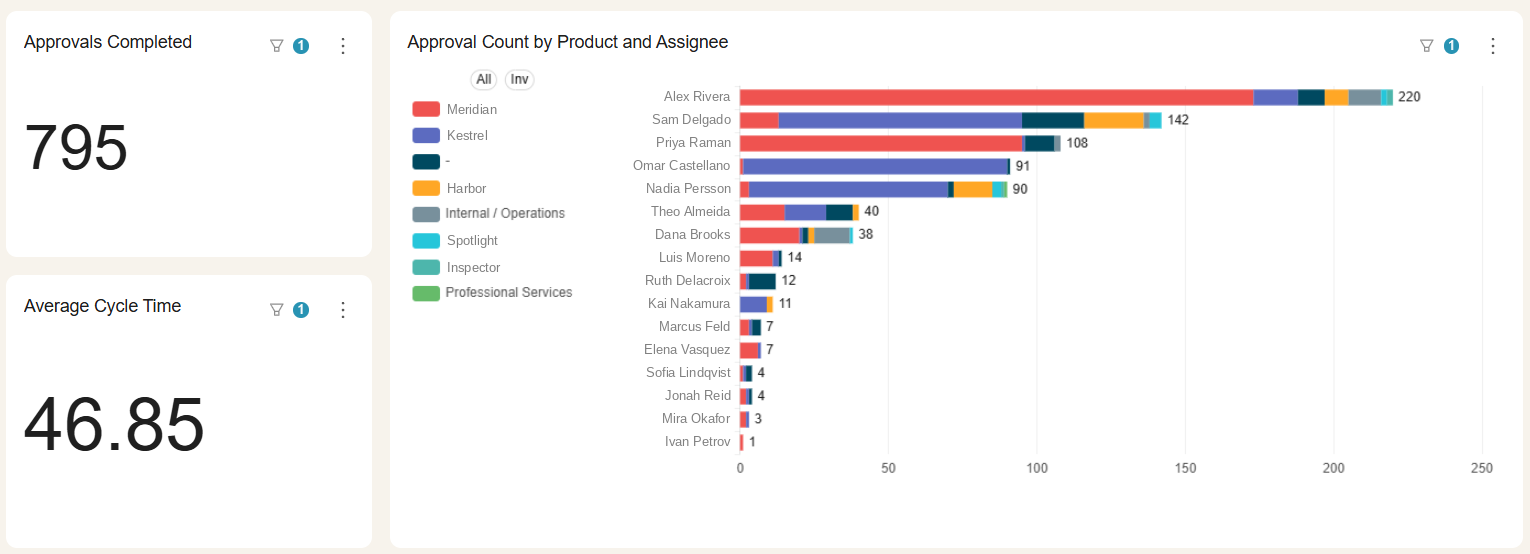
Widened out, the shape holds but the tail gets longer: sixteen people have handled an approval, and the top three account for roughly half of the 795 closed. That is a more useful basis for redistributing work than a snapshot of today’s queue, because it shows who has been carrying the load rather than who happens to be holding it this morning.
Because BlinkMetrics blends Asana with your other tools, you can also line approval load up against time tracked or billing, to see whether your busiest approver is also your delivery bottleneck.
Want to see who’s carrying the approval load on your team, without building another spreadsheet? Book a call with Nathan and we’ll walk through approval workload distribution for your Asana workspace.
How to rebalance approval workload
Once you can see the distribution, the fix usually involves one or more of these:
Reassign specific pending approvals: look at the overloaded person’s current queue and find approvals another qualified team member could handle. Reassign those tasks directly in Asana.
Update approval templates: if certain task templates always route to the same person, check whether that’s intentional or just historical default. Update them to distribute approvals across multiple qualified reviewers.
Add backup approvers: for approvals that require a specific person, designate a backup for when they’re unavailable. Asana allows multiple approvers on a task, which reduces the single-point-of-failure risk.
Set a personal queue limit: as an informal policy, if someone’s pending approval count exceeds a threshold (10 or 15, say), route new approvals to their backup until their queue clears.
Track the change: after rebalancing, watch whether the previously overloaded person’s count drops over the following weeks.
FAQ
Can Asana show me how many approvals each person has? Within a single project, yes, by filtering by assignee. Across every project at once, you can build it in Universal Reporting on Asana’s higher-tier plans, but it’s manual to set up and maintain. For an always-on view without that work, a reporting tool aggregates it for you.
How do I find out who is the approval bottleneck on my team? Look at pending approval age (the oldest approvals) alongside total pending count per person. High volume plus old approvals points to the bottleneck. Aggregating this across all projects makes it visible without the manual audit.
What is approval load balancing? Approval load balancing is the practice of distributing approval tasks across qualified team members so no one person becomes overloaded. It usually means reviewing who has the most pending approvals and either redistributing current tasks or updating the templates that control default assignment.
How do I reassign approvals in Asana? Open the approval task, click the assignee field, and select a different team member. For bulk reassignment, use Asana’s multi-select in a project list view to select multiple approval tasks and change the assignee at once.